
- If you already have an existing account
- If you DO NOT currently have a FollowMyHealth Account
- If you need to reset your password
- Mobile Device Instructions (iPhone or Android)
- After the connection request has been sent and accepted
Please note: If you are assisting someone with setting up an account, use the patient’s information—not your own. We cannot connect the account if the information provided in the outside connection request does not match the patient’s record.
If you already have a FollowMyHealth account or have one from a previous hospital (University Hospital for instance) and want to send a connection request to Western Reserve Hospital; log in to your existing account and follow the instructions below. If you need to create an account or reset your password, use the appropriate jump links at the top of this page.
If your email address was provided during registration, you may have received an invitation to connect your account with Western Reserve Hospital. If you cannot locate the email, need help setting up an account, or already have an account from a previous provider, follow the instructions below.
If you are using a mobile device instead of a computer, please complete the steps in the Mobile Device section.
If you already have an existing account
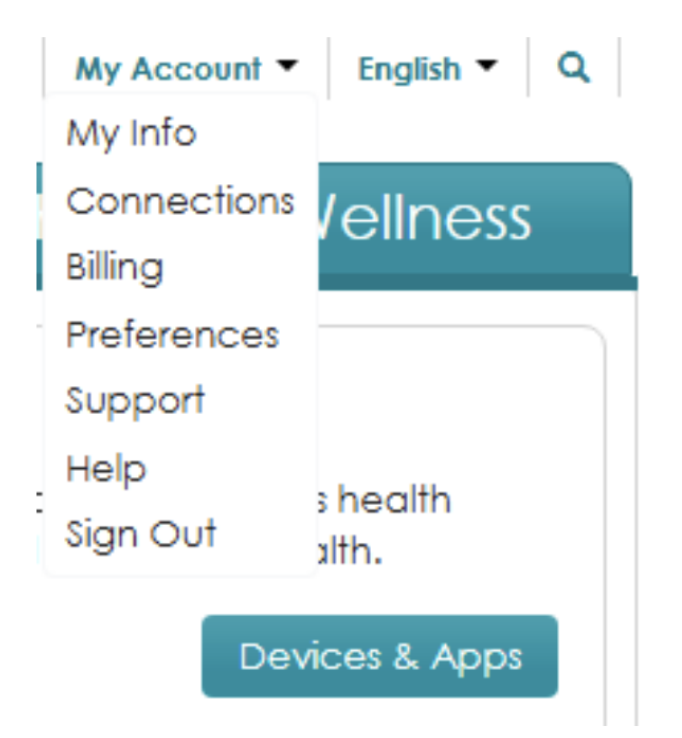
1. Click My Account at the top of the page.
2. Click Connections.
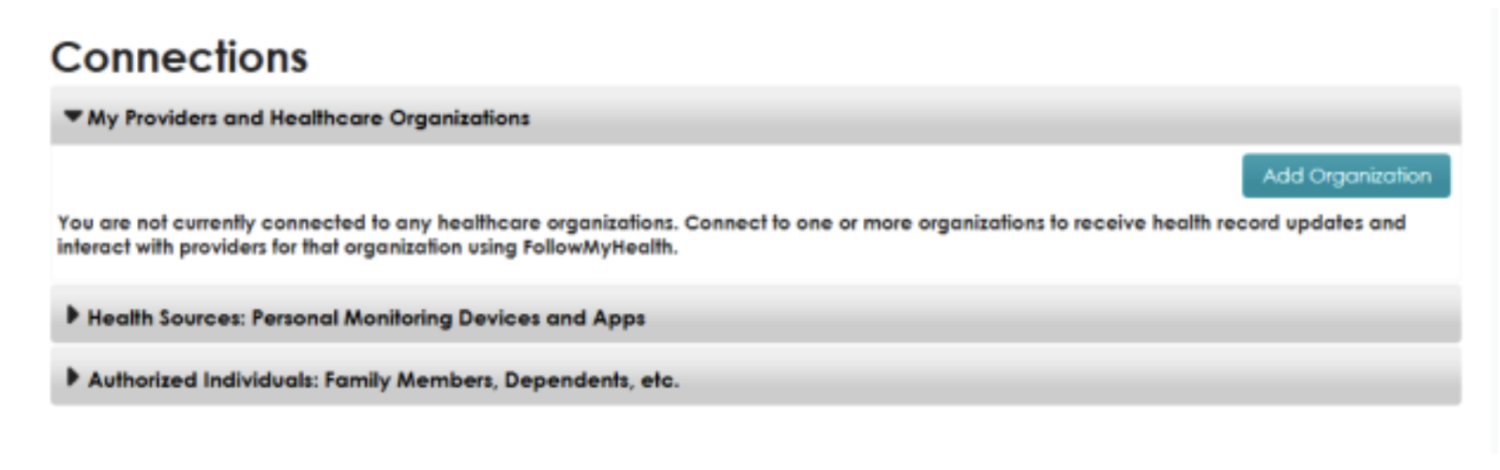
3. Click Add Organization.
4. Click Organization Type and select Hospital.
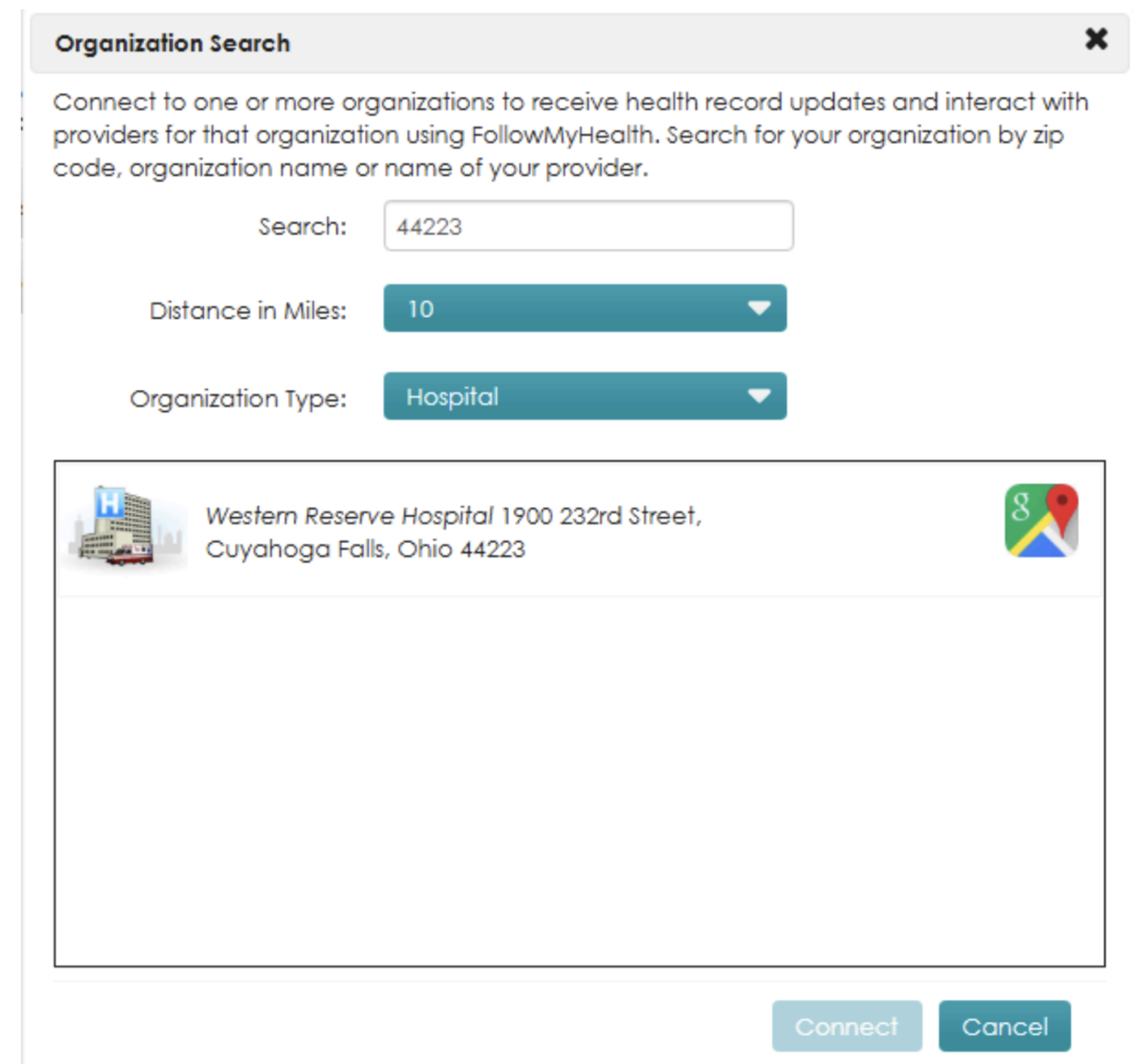
5. Enter the hospital zip code: 44223.
6. Click Western Reserve Hospital.
7. Click Connect.
8. Click Accept.
After you complete these steps, a request will be sent to our team. Once verified, we will connect your account.
If you DO NOT currently have a FollowMyHealth account
Follow the steps below to create an account and request a connection to Western Reserve Hospital.
1. Click HERE
2. Click on I need to sign up.
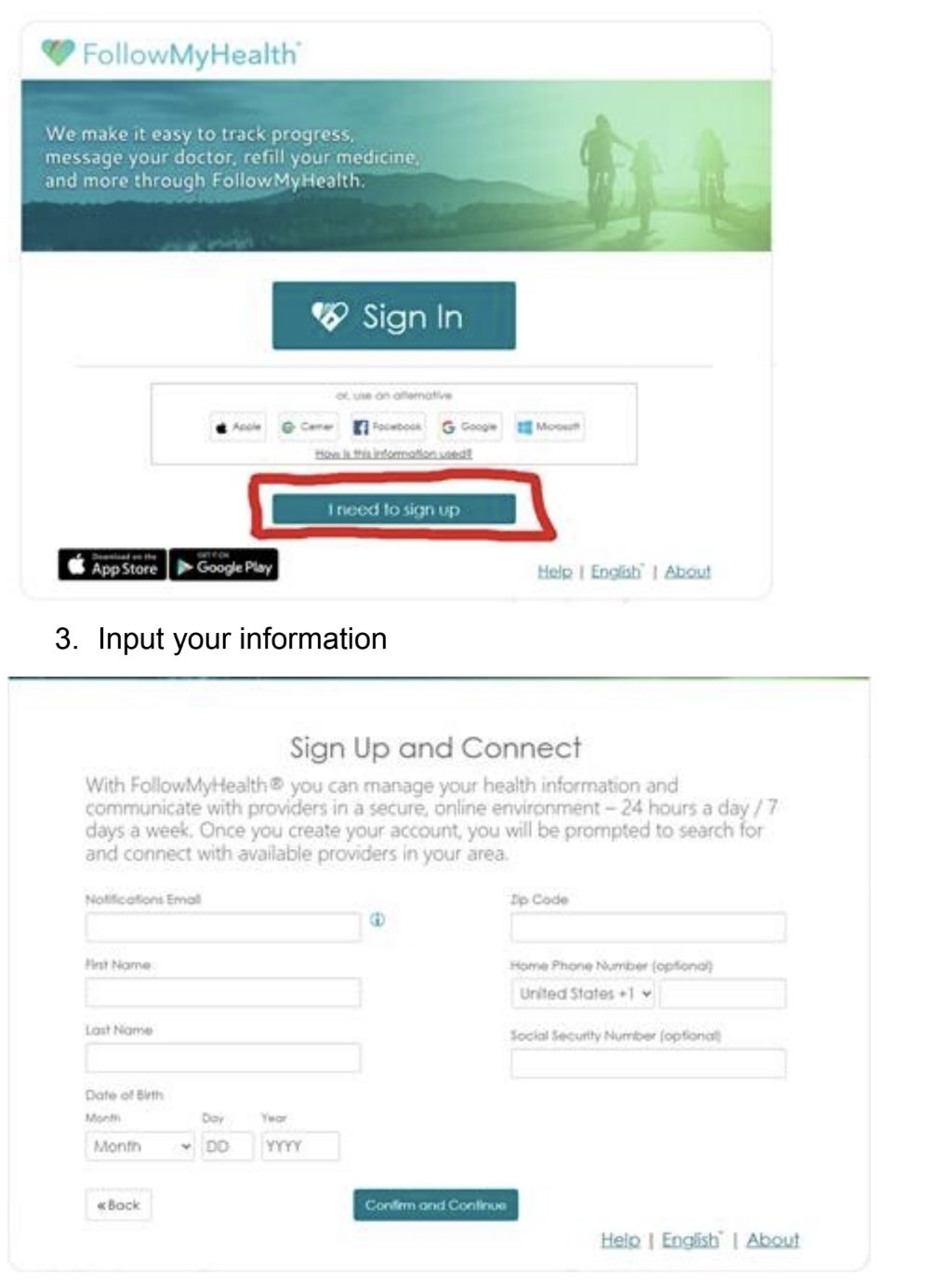
3. Enter your Information.
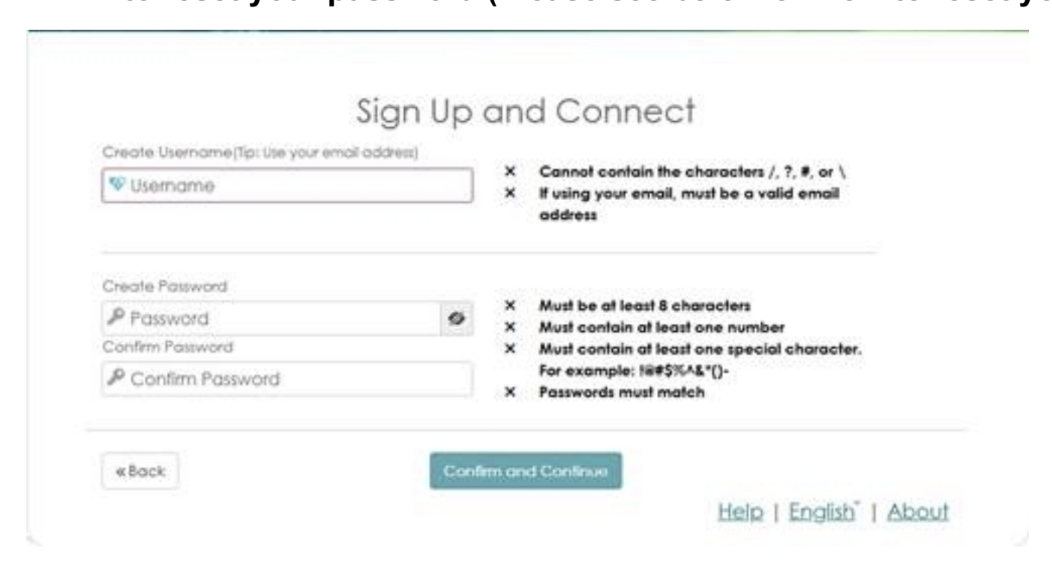
4. Click I Accept.
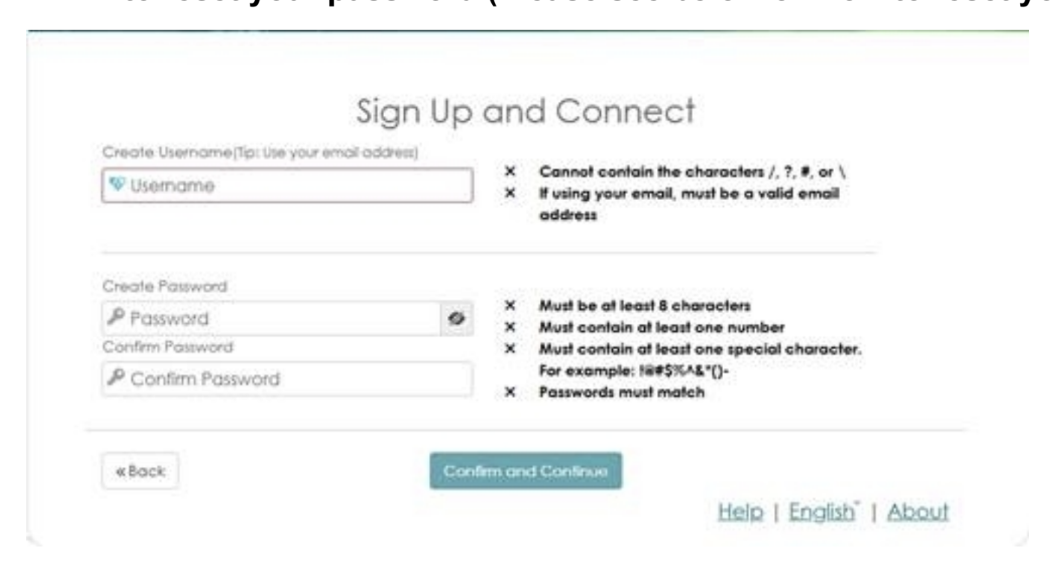
5. Create a username and password. Your username does not have to be your email address. If you receive a message that your email address is already in use, you likely already have an account from a previous institution. If so, follow the password reset steps.
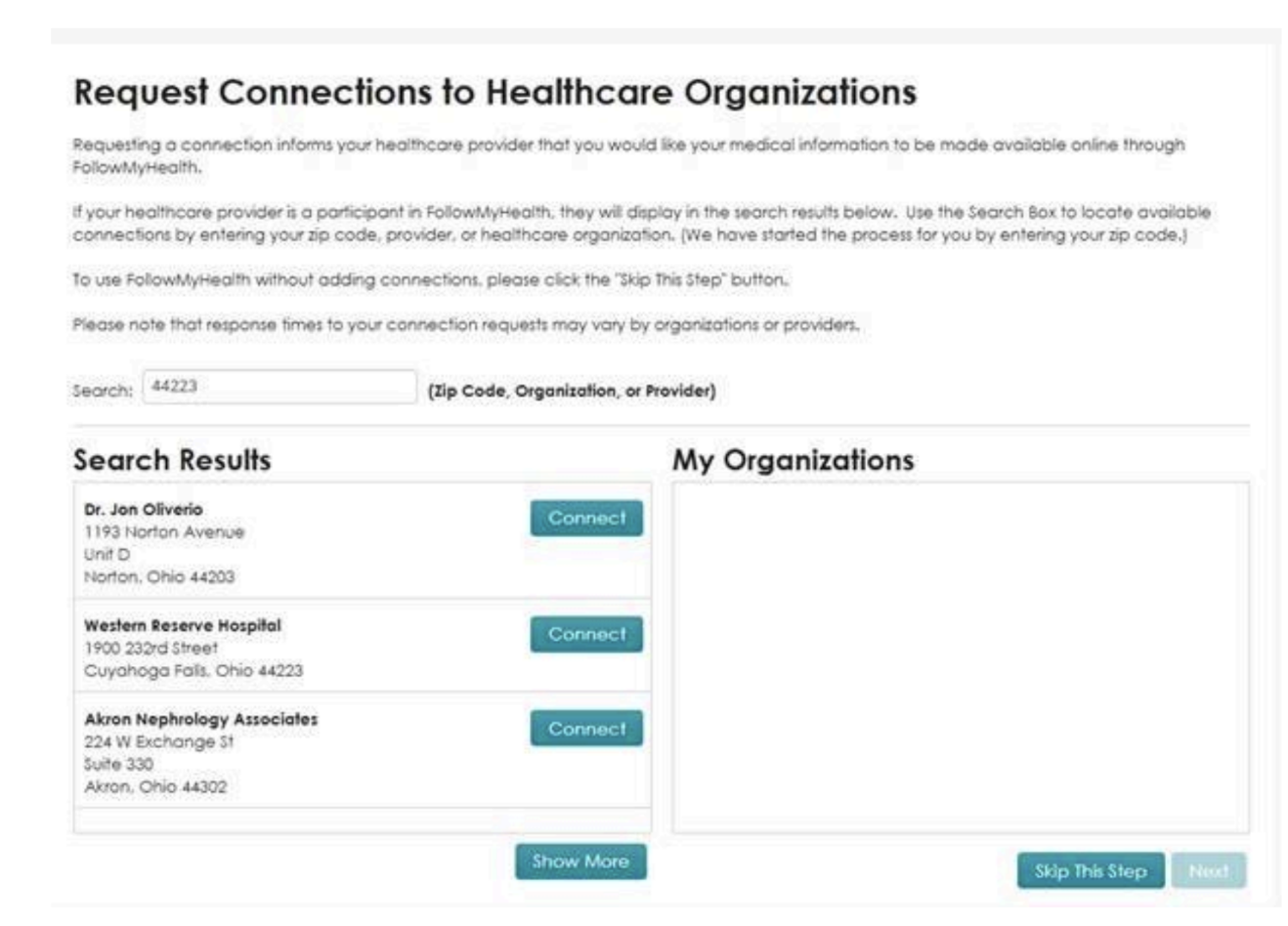
6. Click Connect next to Western Reserve Hospital, then click Next.
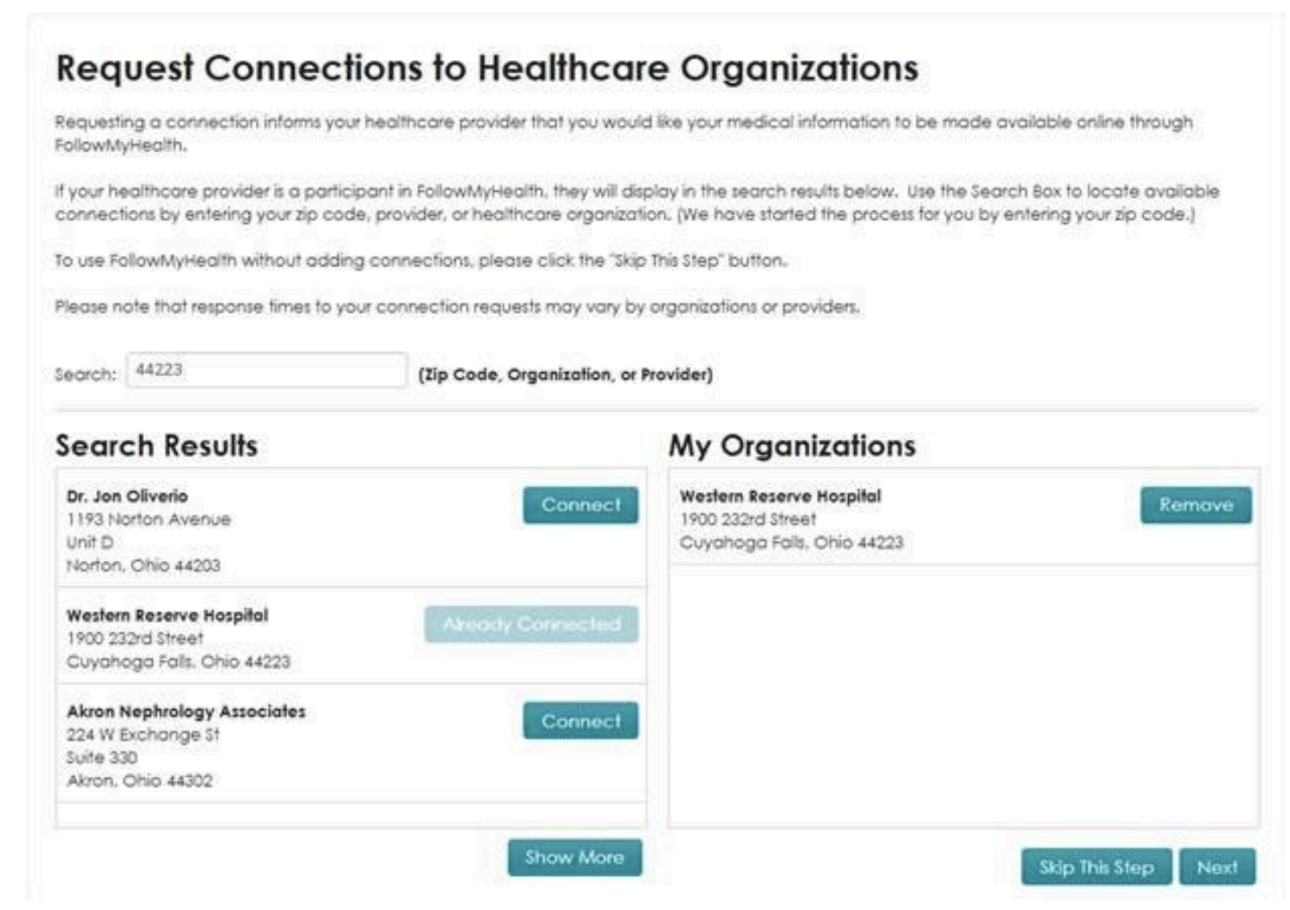
7. Click Next.
8. Click Continue.
After you click Continue, Western Reserve Hospital will receive the request and approve it after verification is complete.
If you need to reset your password
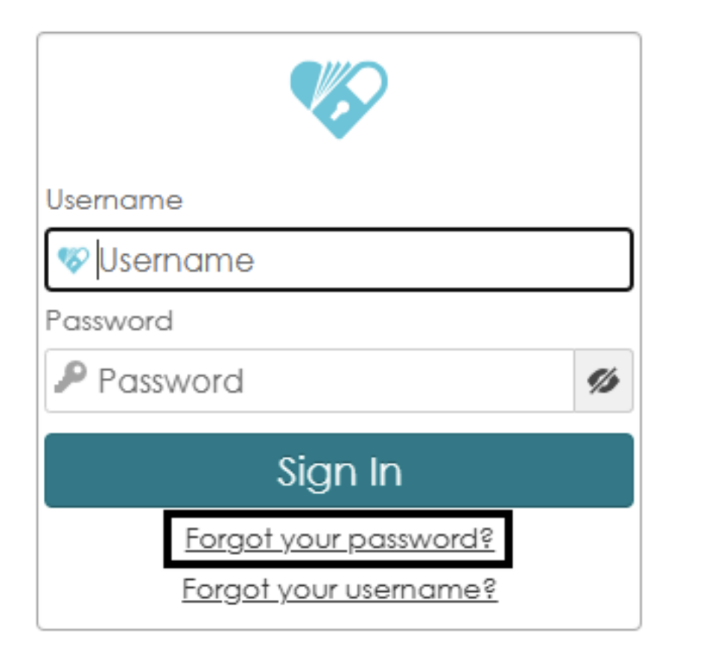
1. Click Forgot Password.
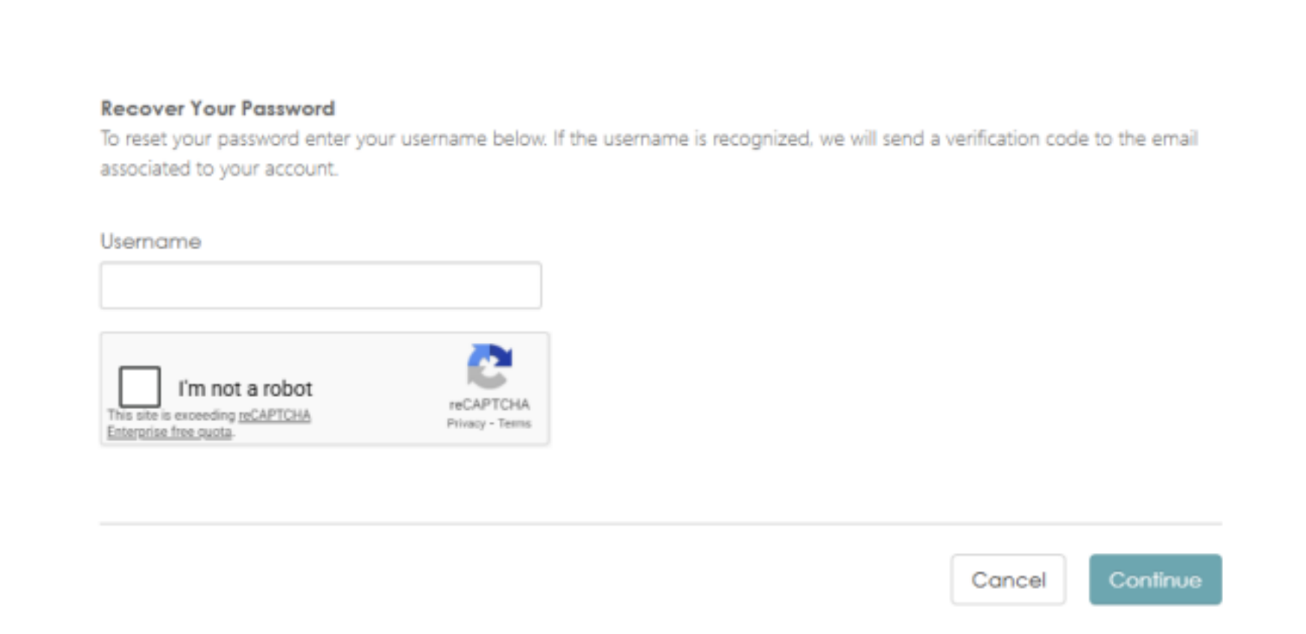
2. Enter your username, which is most likely your email address. Select the captcha box, then click Continue.
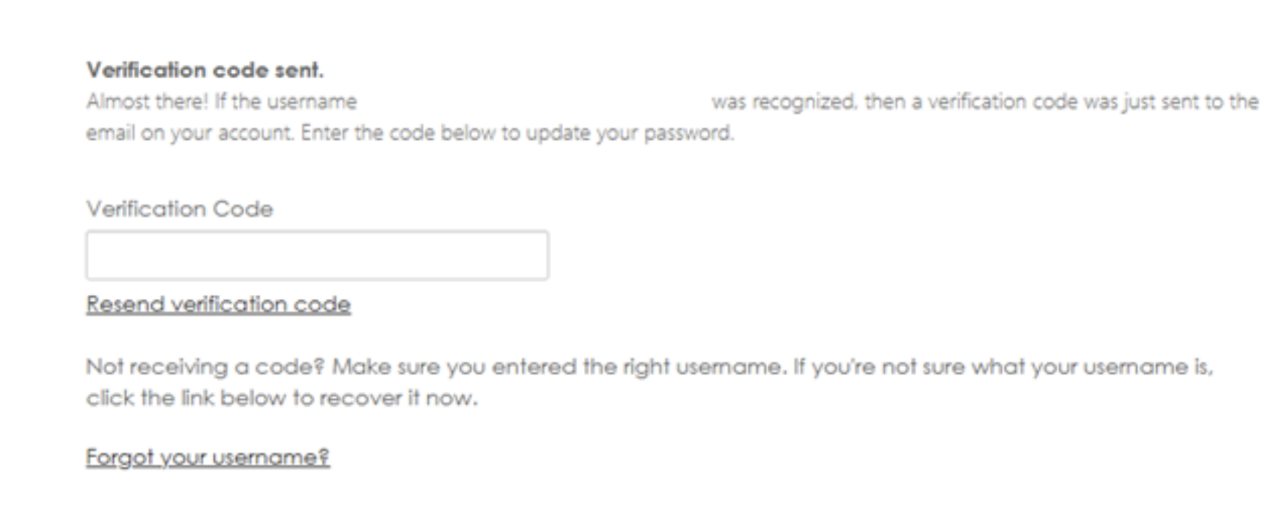
3. A verification code will be sent to your email address. Enter the verification code, then click Continue. Do not press Enter, or another code may be sent.
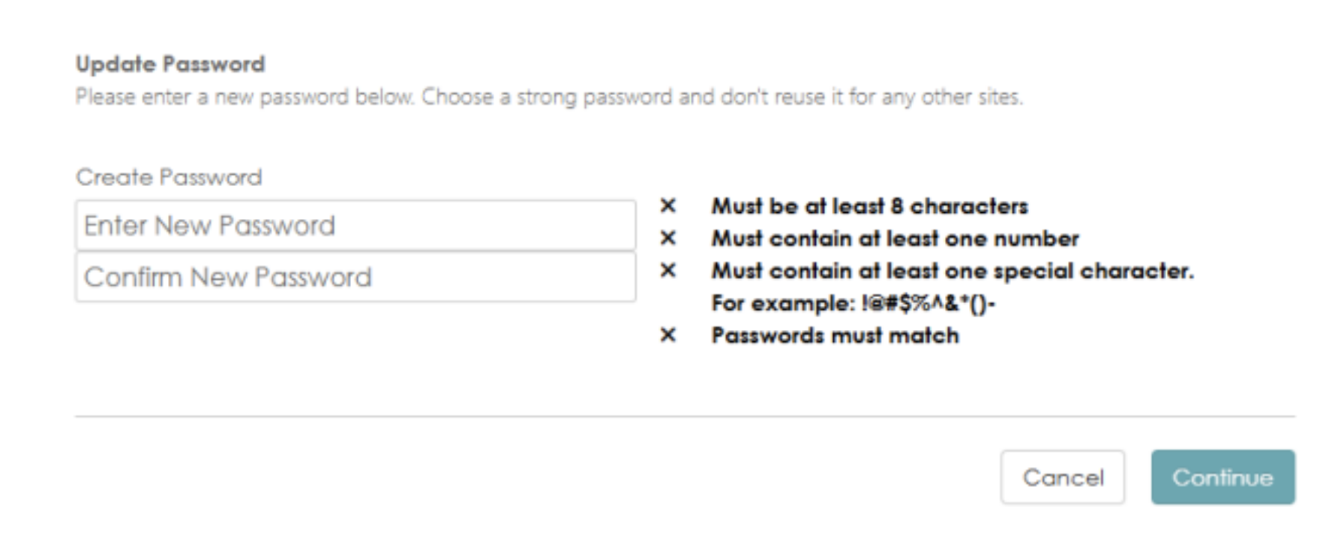
4 Enter and confirm your new password, then click Continue.
5. After your password has been reset, follow the instructions above to send a connection request to Western Reserve Hospital.
Mobile Device Instructions (iPhone or Android)
1. After signing up for an account, you will see a screen like the one shown below.
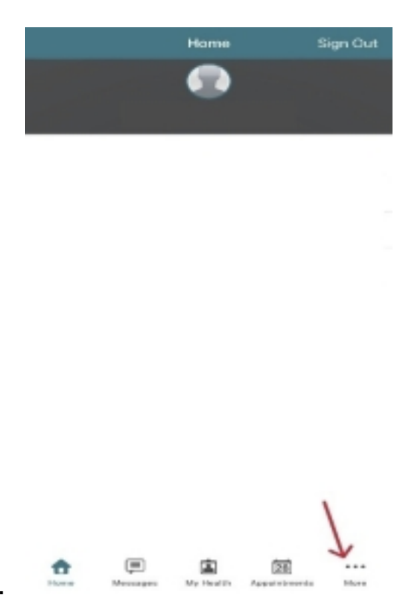
2. Tap More.
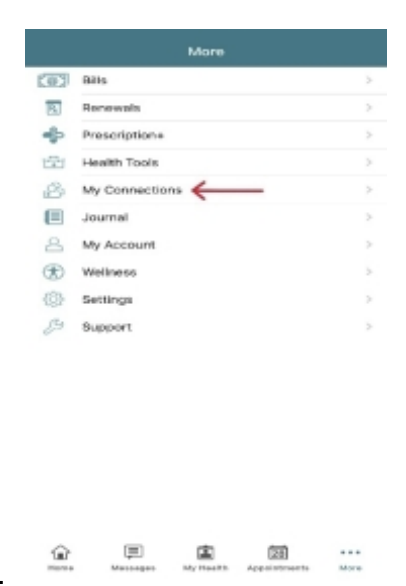
3. Tap My Connections.
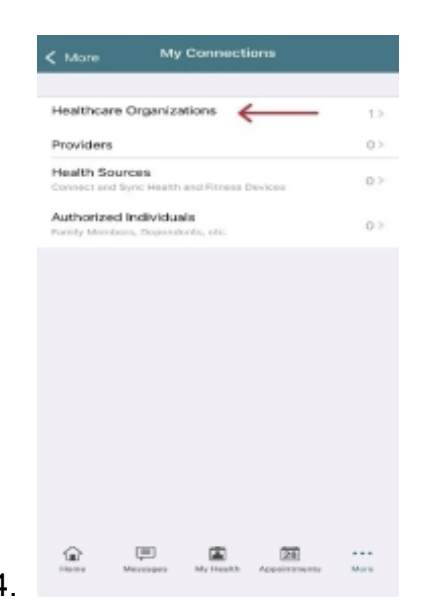
4. Tap Healthcare Organization.
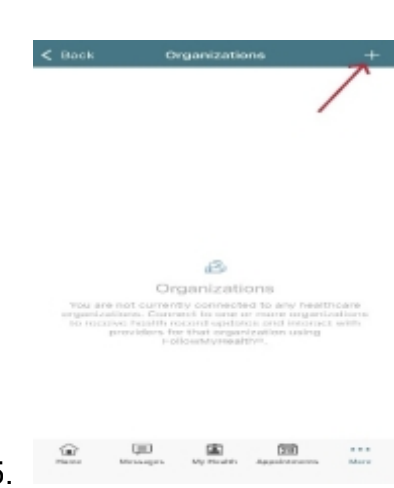
5. Tap the plus sign in the upper-right corner.
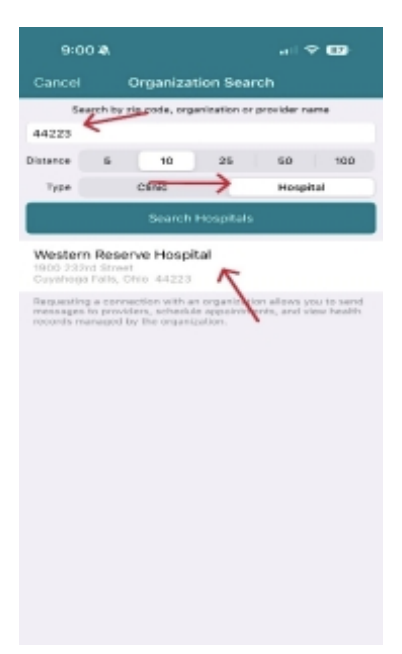
6. Enter 44223 as the zip code, tap Hospital, then tap Western Reserve Hospital.
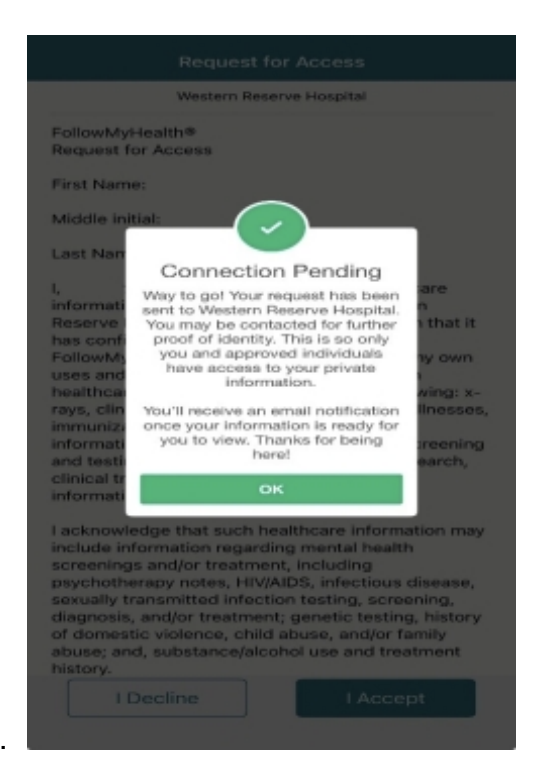
7. Tap I Accept and wait for Western Reserve Hospital to approve the connection request.
After the connection request has been sent and accepted, you will receive an email confirming that your account is connected. If you need further assistance, please contact the Help Desk at 330-971-7600.